Setting up automatic Discord roles
Add our bot to your Discord server and map stats to roles. It grants a role when a hunter qualifies and removes it when they no longer do.
Automatic roles are a Legend perk (Old Blood included). Linking accounts and Discord Linked Roles stay free - only this bot-driven assignment needs a subscription. Your rules are saved and resume when you re-subscribe.
Before you start
- An active Legend subscription (or an Old Blood grant).
- Your own Discord account linked - link it before you add the bot, or the setup can't tell it's you.
- The Manage Server permission on the Discord server you're adding it to.
Your members each need to link too - the bot skips anyone who hasn't. Post this link in your server so they can connect:
https://bayouledger.com/discord/verify
It signs you in with Steam if needed, then confirms the link.
Add the bot
- Open your Discord servers, or go to Account → Customize → Discord server bot → Manage your servers.
- Press Add to your server.
- Pick the server from Add to server and press Continue, then Authorize. The bot asks for Manage Roles to hand roles out.
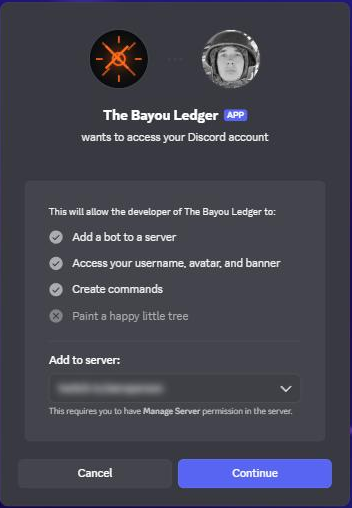
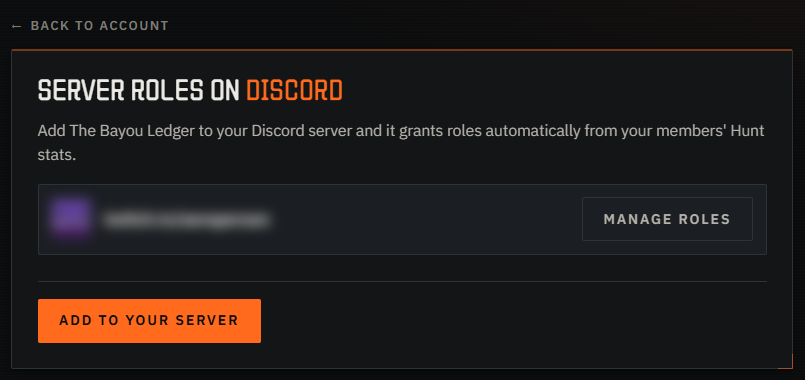
Put the bot's role above the roles it assigns
Discord only lets a bot manage roles that sit below its own. If a rule seems to do nothing, check this first.
In Server Settings → Roles, drag The Bayou Ledger above every role you want it to assign.
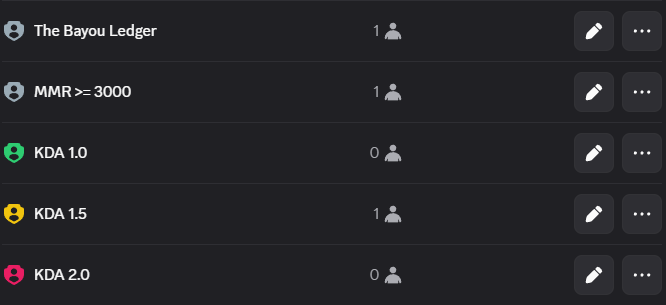
If a role doesn't show up in the dropdown in the next step, this is why.
Add your conditions
Press Manage roles next to the server, then fill in the Add condition row:
- Stat - MMR, KDA, Prestige or Lifetime bounty.
- Operator -
>,<or=. - Value - the number to compare against.
- Role - the Discord role to grant. Start typing to search.
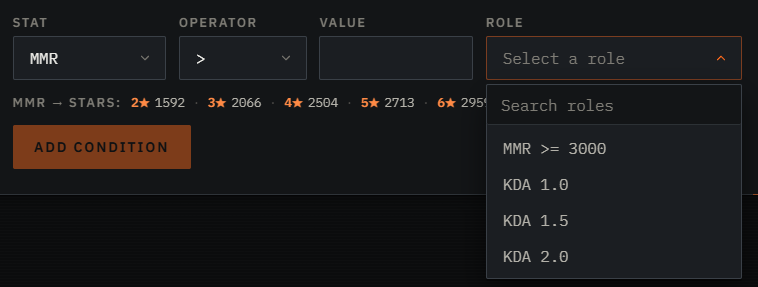
Press Add condition and it appears in the Rules list.
Combining conditions
Add a second condition with the same role to narrow it further. Conditions on one role must all hold - a hunter gets the role only while every one of them is true.
Example: KDA > 1.00 and KDA < 1.50 on one role covers everyone between 1.0
and 1.5:
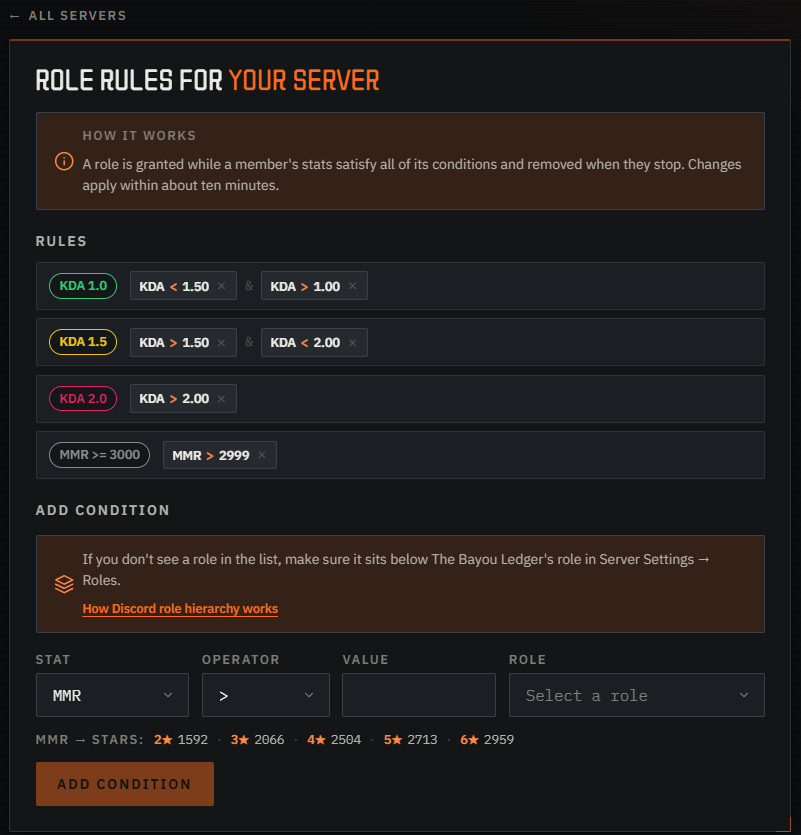
Press the small × on a condition to remove it. A role disappears from the list when its last condition is gone.
Entering values
- MMR - a whole number, the in-game MMR.
- KDA - a ratio, written the normal way:
1.50. (Discord's own Linked Roles want this multiplied by 100 - here you don't.) - Prestige - a whole number.
- Lifetime bounty - a whole number.
There is no "greater than or equal to", so shift by one step: "3000 and up" is
MMR > 2999. KDA counts in hundredths, so "1.50 and up" is KDA > 1.49.
For star bands, use the MMR → Stars hint under the form, or the table in the Linked Roles guide.
How fast it applies
Changes apply within about ten minutes.
Who can configure it, hidden profiles and a removed bot
- Only the hunter who added the bot can configure it. Others see "You don't manage this server". To hand it over, have that person add the bot again.
- Hidden profiles are skipped. A hunter who hides their profile in Hunt has no stats to compare.
- If the bot is removed the server shows Bot removed and assignment stops. Add it again to resume - your rules are still there.
Need a hand?
If something here doesn't match what you see, ask on our Discord server - other hunters are there too.